
Instructions for public app
一、Download app
Search cozylife in the apple store and major app markets or scan the following QR code to download this app.

二、Register / login / retrieve password
When you open the app for the first time, the privacy policy page of the comfortable life platform will pop up automatically. After reading and agreeing, you can continue to perform the following operations.
2.1、Register
· Click Register now to jump to the account registration page.
· After entering the mailbox and preset password, click get verification code.
· After entering the received verification code, the registration can be completed after passing the verification.
2.2、Account password login
· If you already have an app account, you can directly enter the email and password you used when registering, and then click login to log in to the system.
2.3、Change password
· Click my and then click the account avatar.
· Click modify login password and click 'to obtain the verification code'
· Enter the received verification code, and then enter a new password to complete the password reset operation.
2.4、Forget password
· If you forget the account login password of the app, you can reset the account password through the process of retrieving the password on the login page.
· Click 'forget password', enter the email you used during registration, and click 'get verification code' after confirmation.
· Enter the verification code received by the email.
· Enter a new password and click 'finish' to complete the password reset operation.
2.5、Immediate experience mode
· Click experience now to automatically create an anonymous account using your mobile phone information, and then enter the home page of the app
三、basic function
3.1、Add device
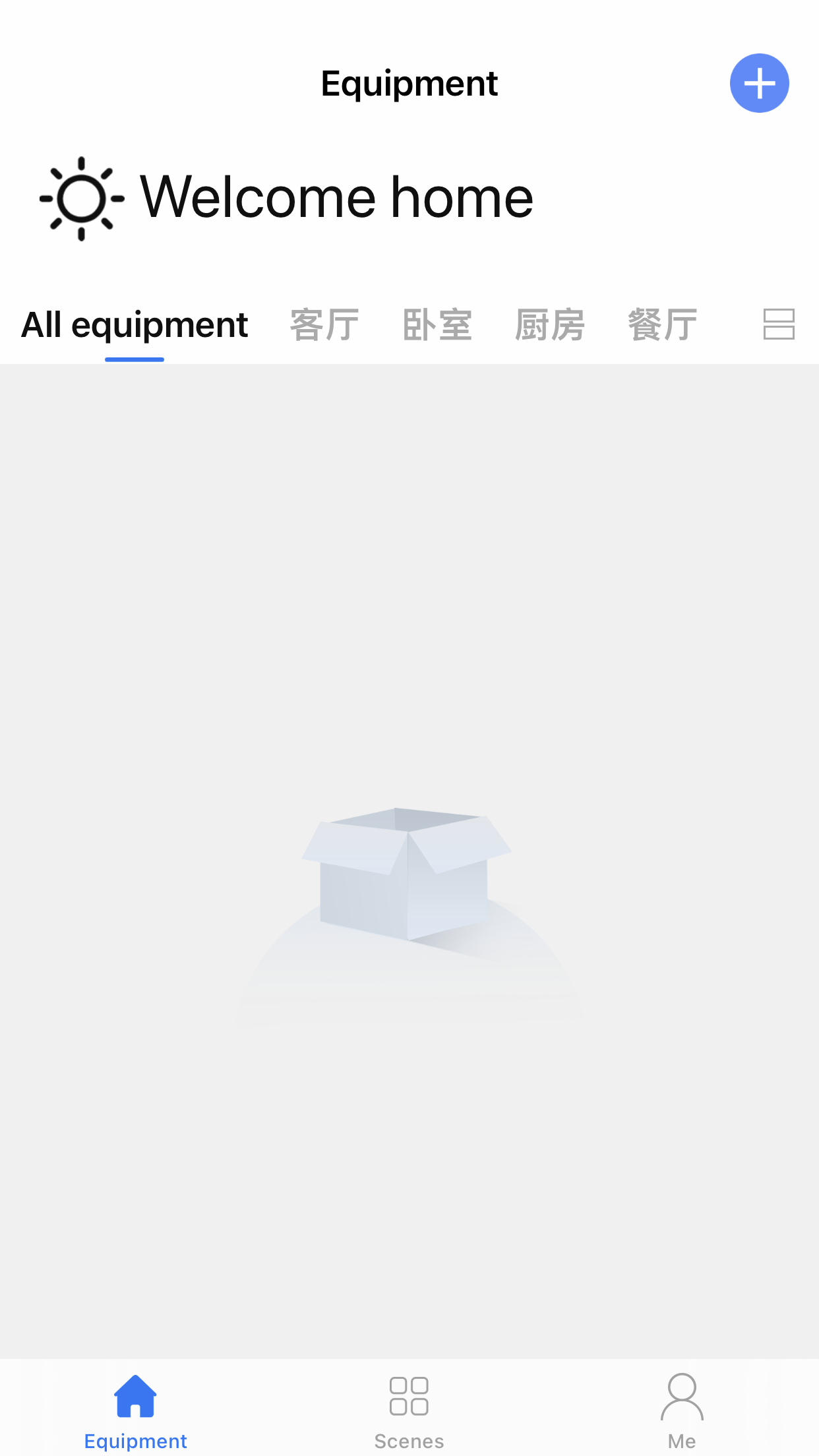
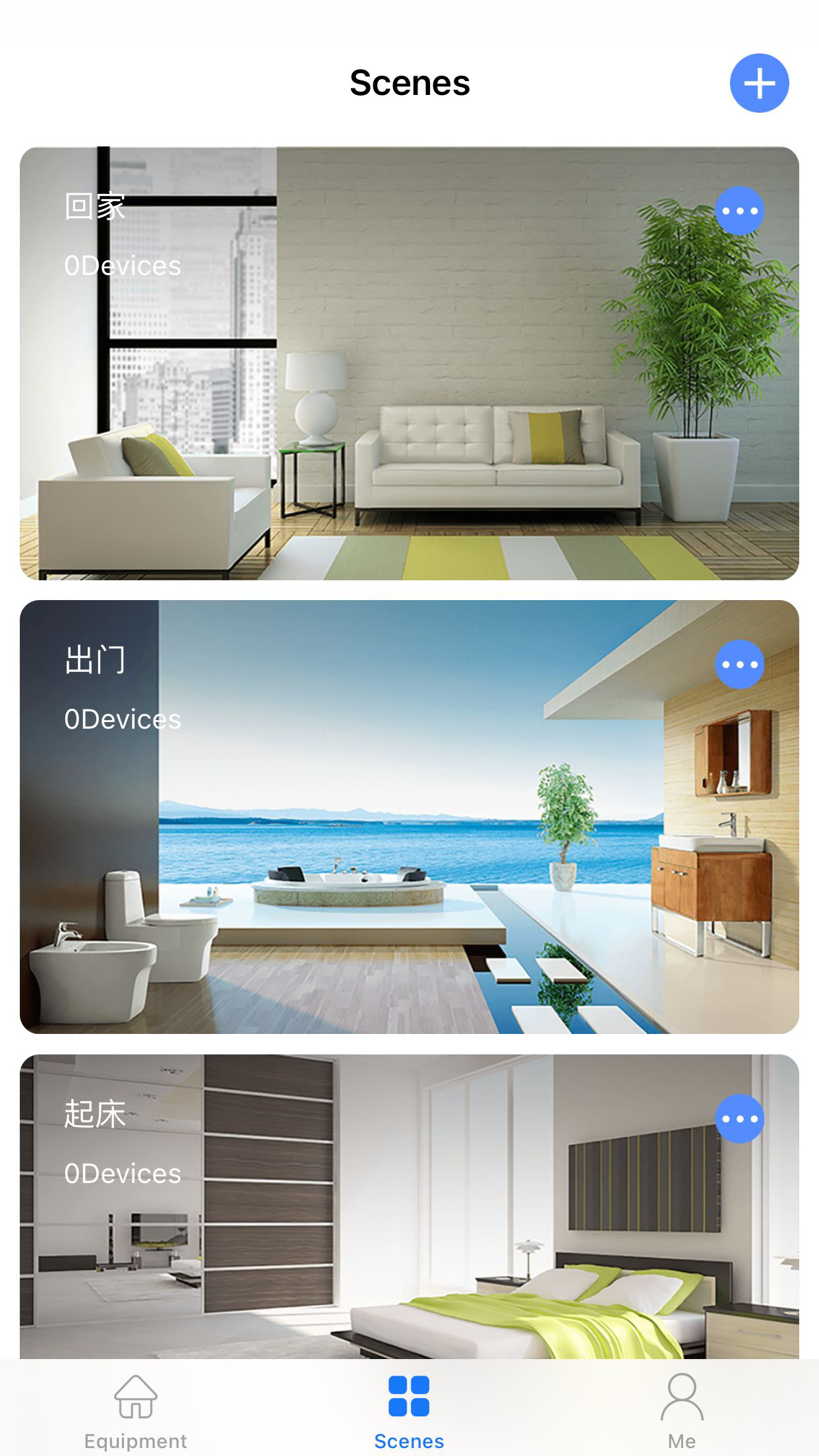
Click the + button on the top right of the device list page to enter the 'add device' page.
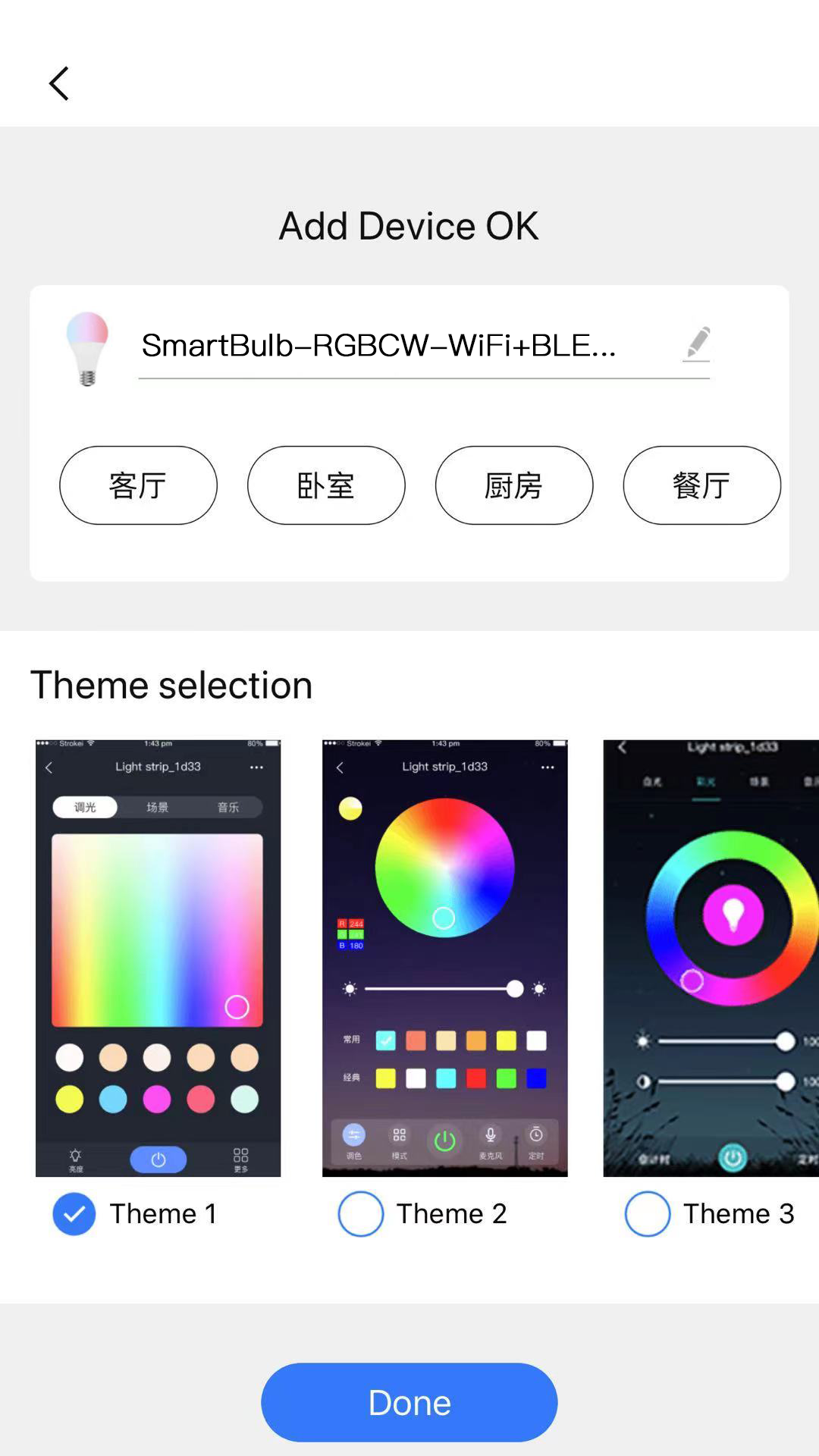
3.1.1、Add Wi-Fi device
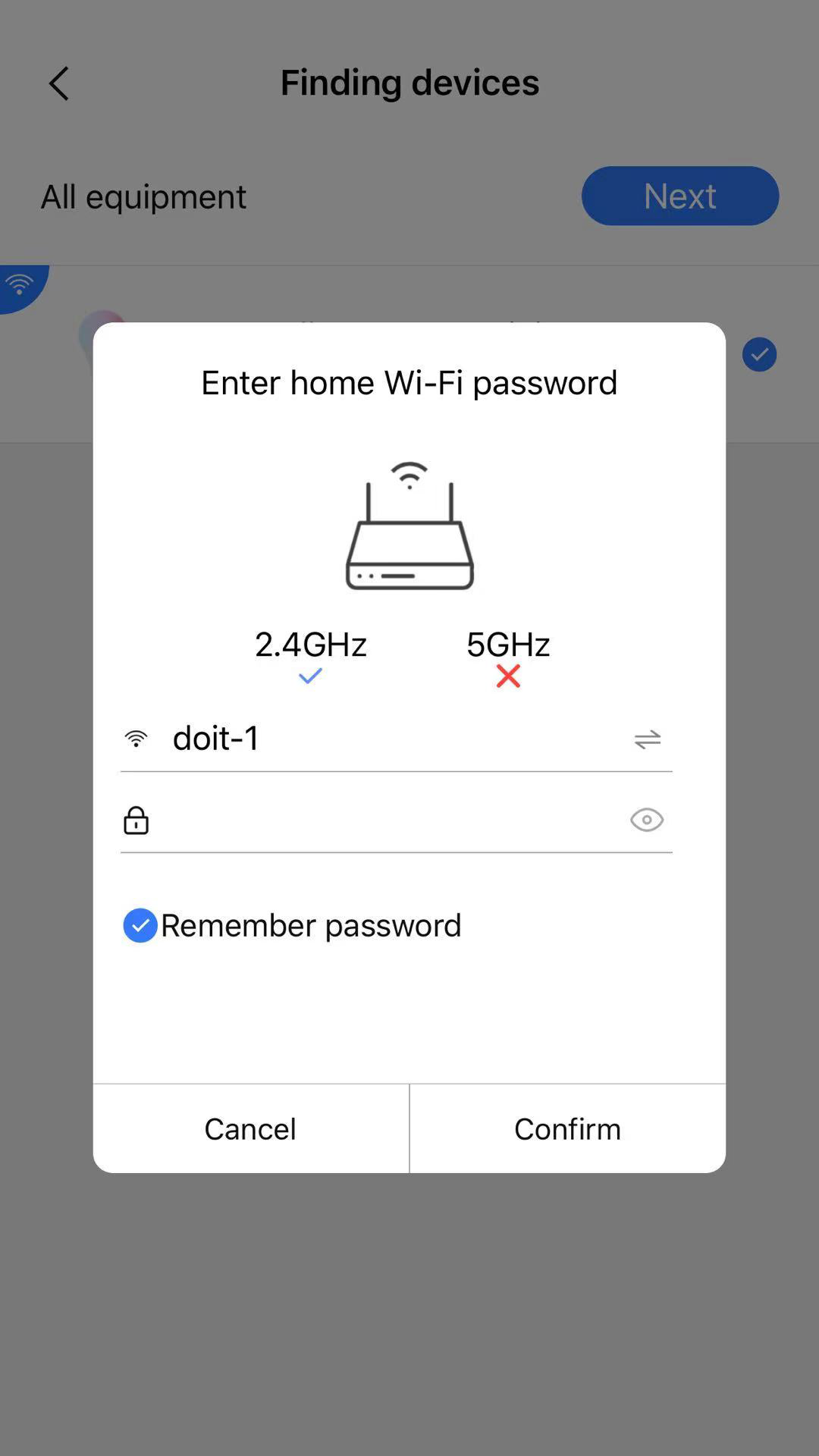
The single-mode WiFi device supports the use of hot spot distribution mode. You need to set the device to the distribution state according to the instructions
Find the WiFi hotspot starting with cozylife in the WiFi setting page of the mobile phone, and click to connect.
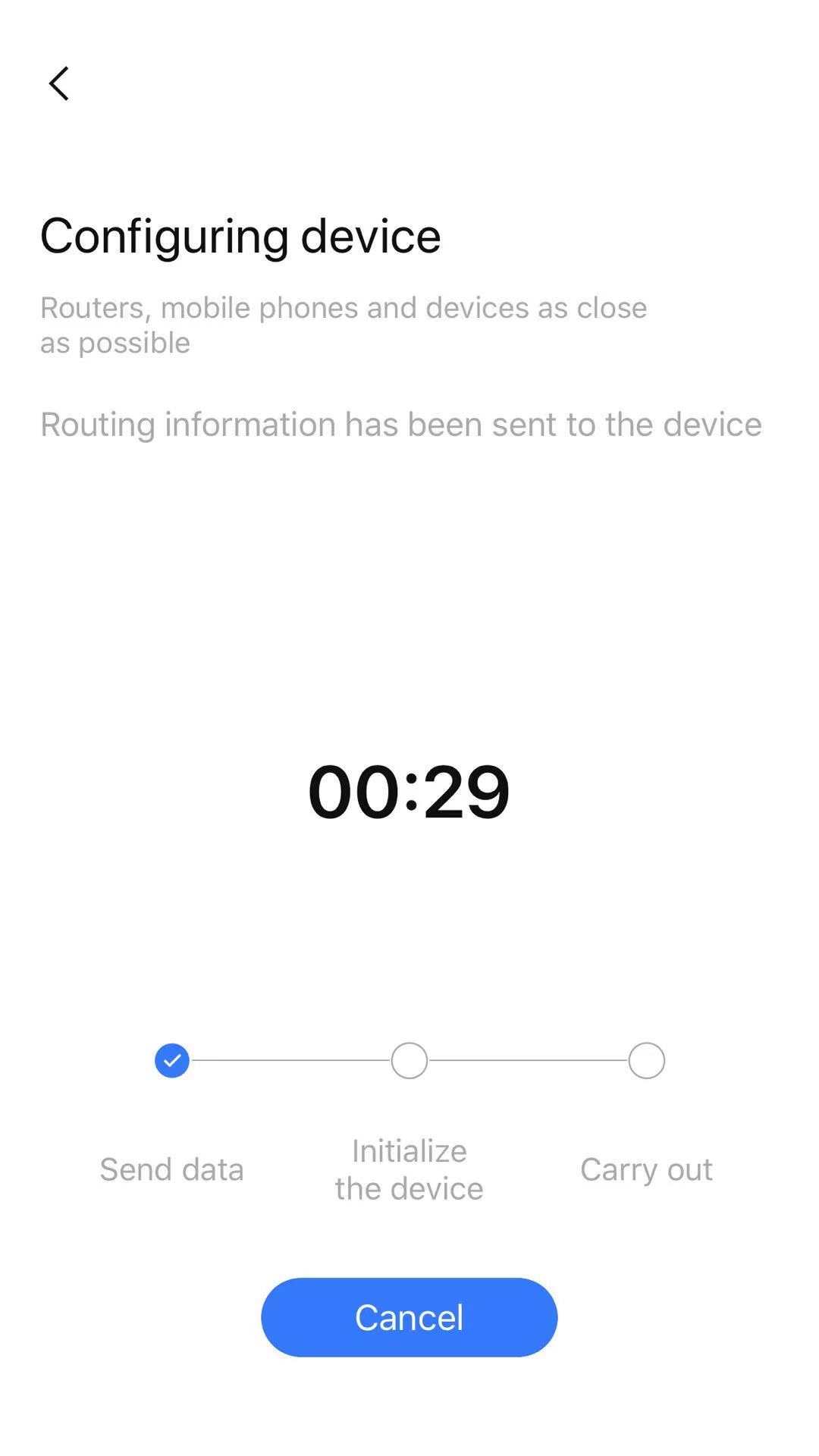
After connecting the specified hotspot, you can enter the distribution process by returning to the distribution interface in the app. The app will go through the process shown in the figure. After successful connection, you can rename the equipment and classify the rooms.
3.1.2、Code scanning and adding device
You can also directly scan the QR code on the product package to add equipment
You can scan the QR code of other people's shared devices
3.2、Manage equipment and rooms
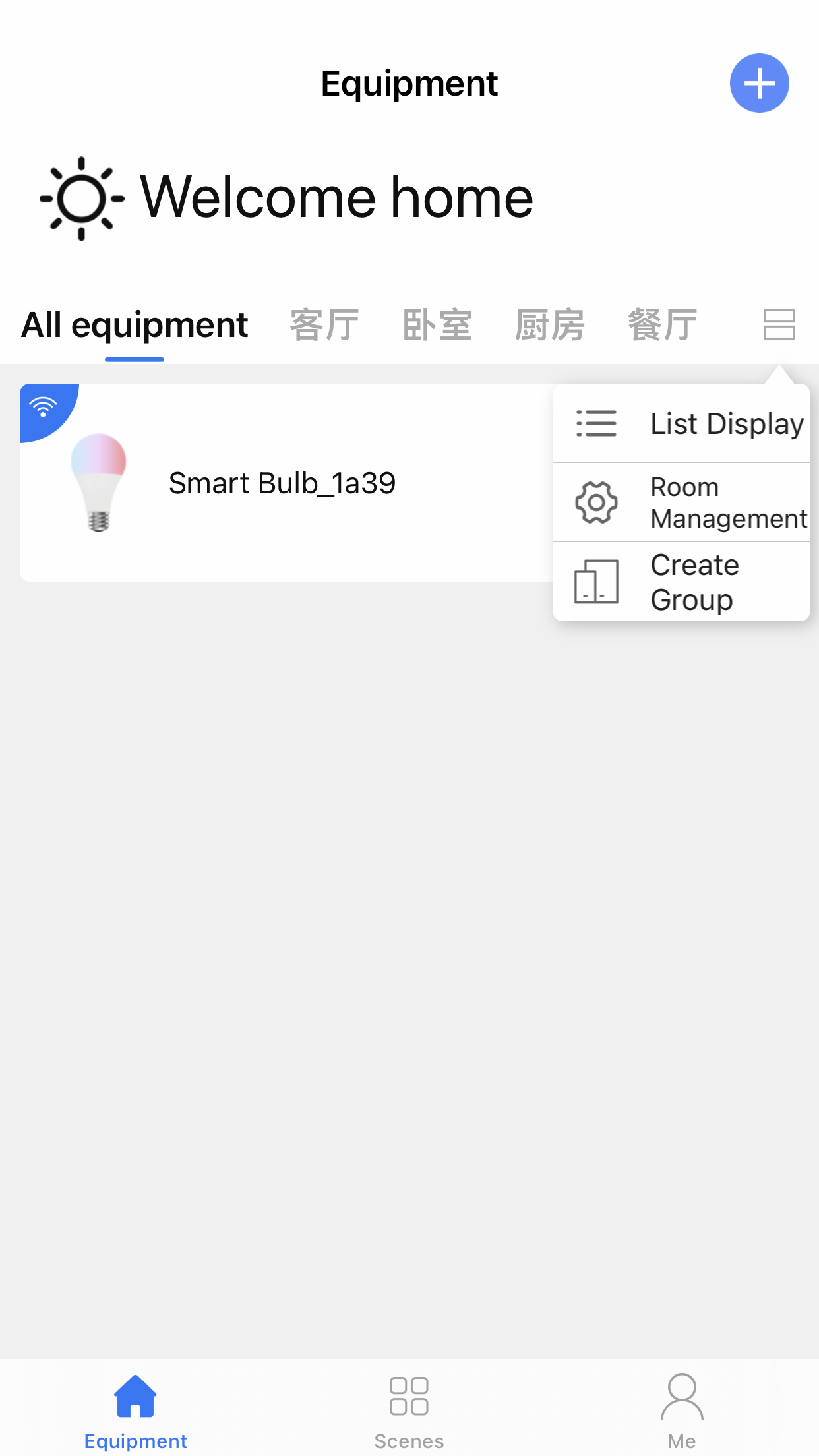
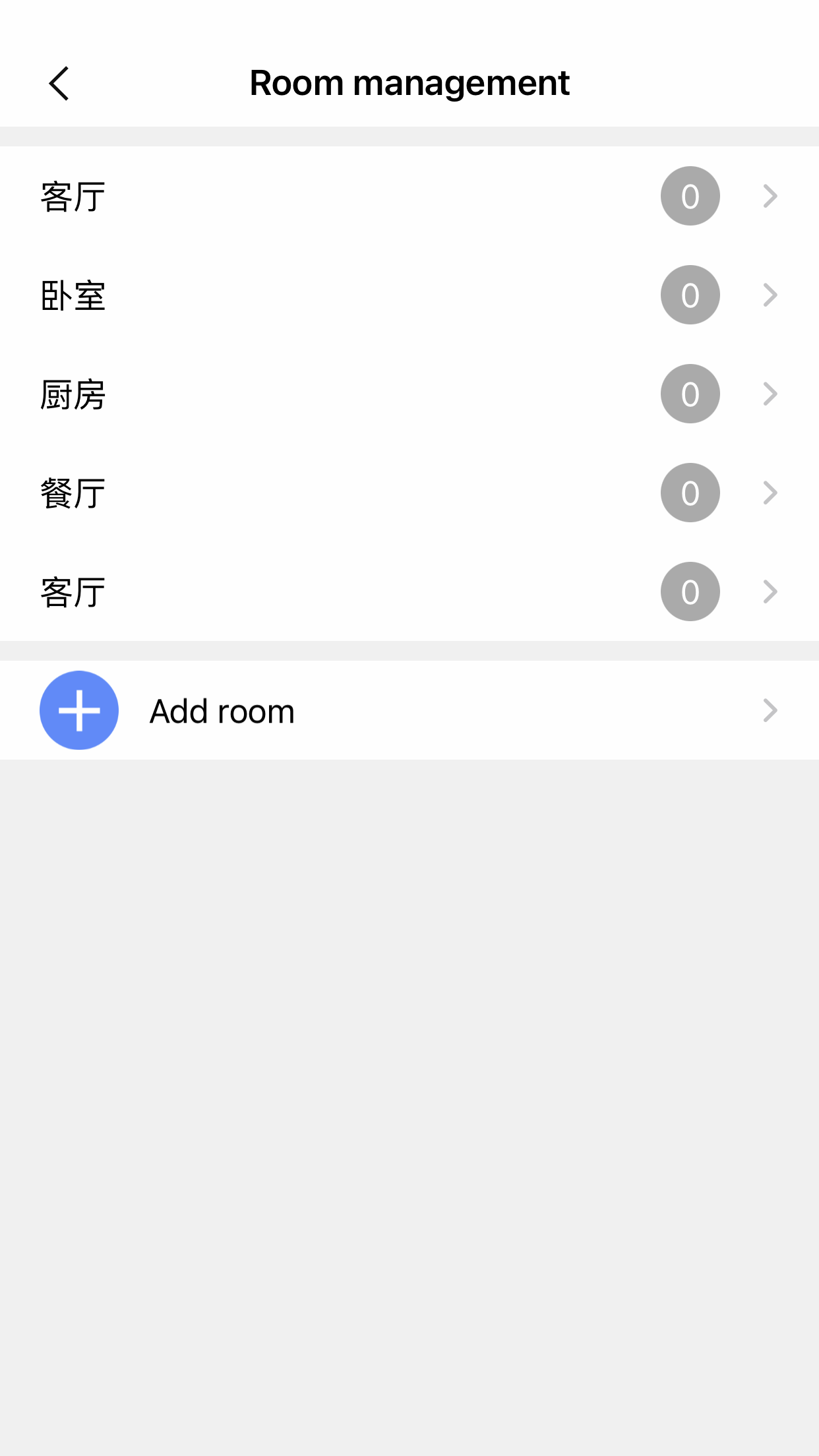
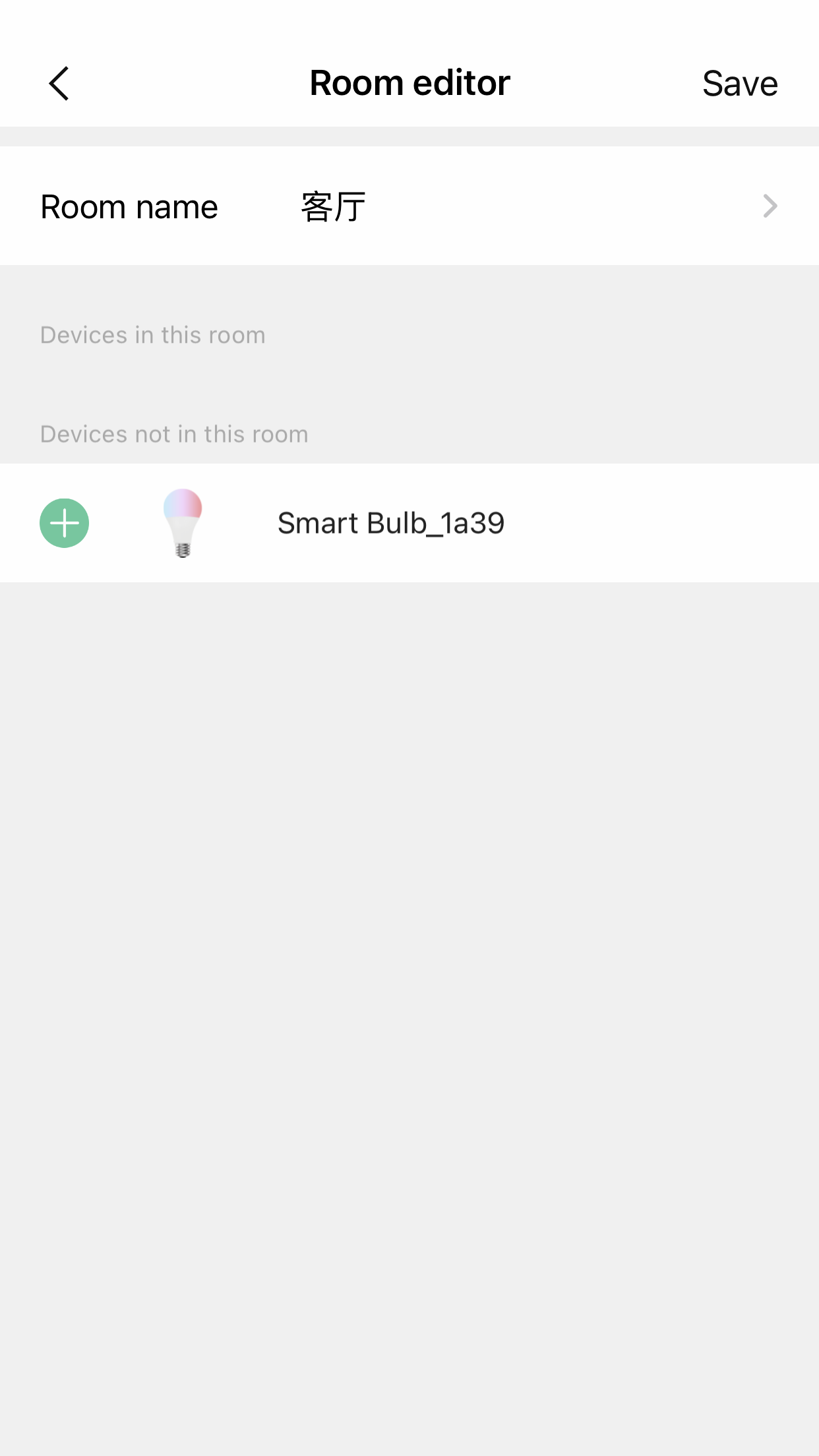
3.2.1、device management
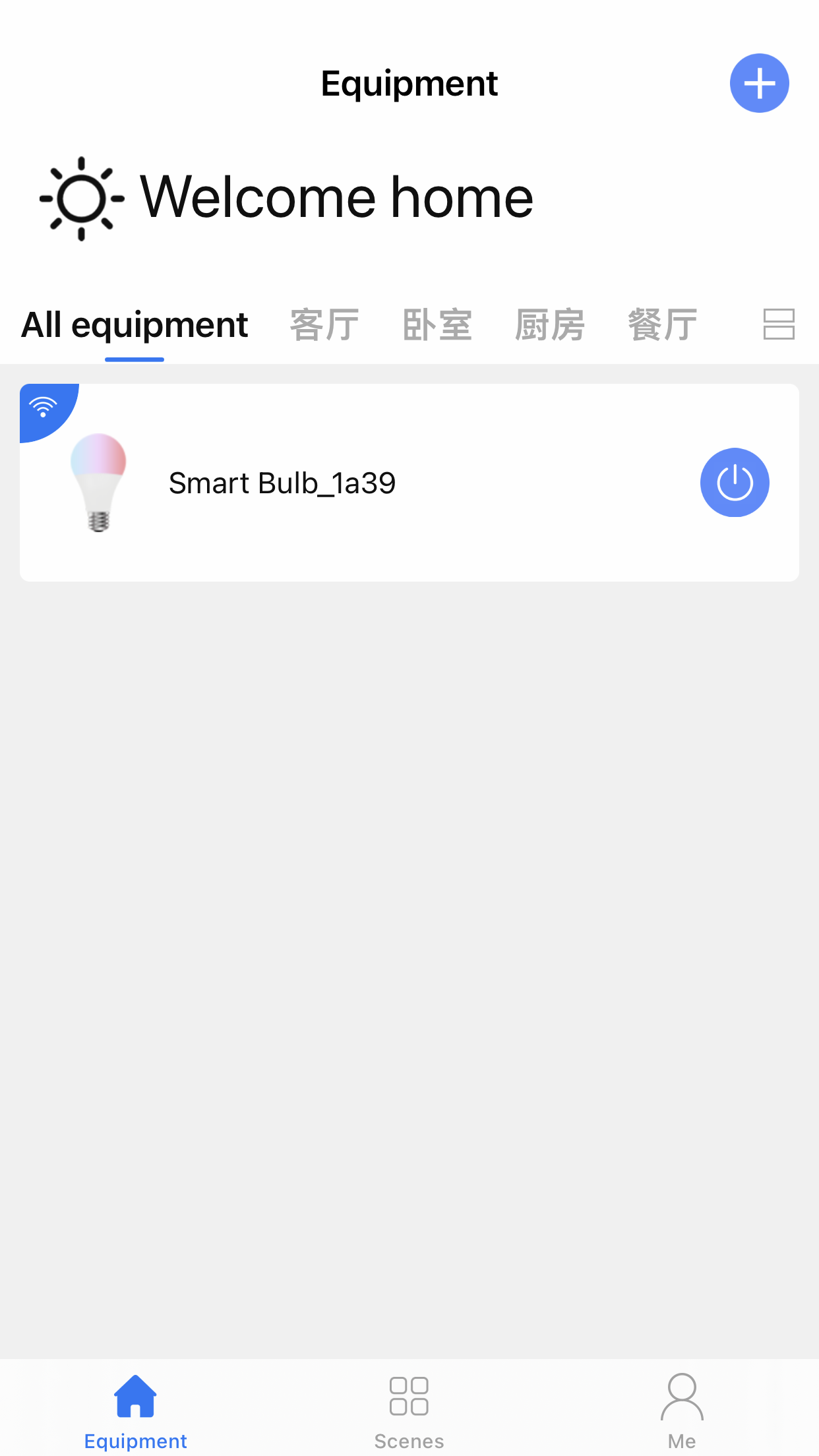
Equipment online status: if the equipment icon is displayed in gray, it means that the equipment is offline, and if it is displayed in white, it means that the equipment is online;
Remove device: long press the device icon to remove the current device;
Click the icon on the right of the top to switch the display mode of the equipment to list display or grid display.
3.2.2、Room management
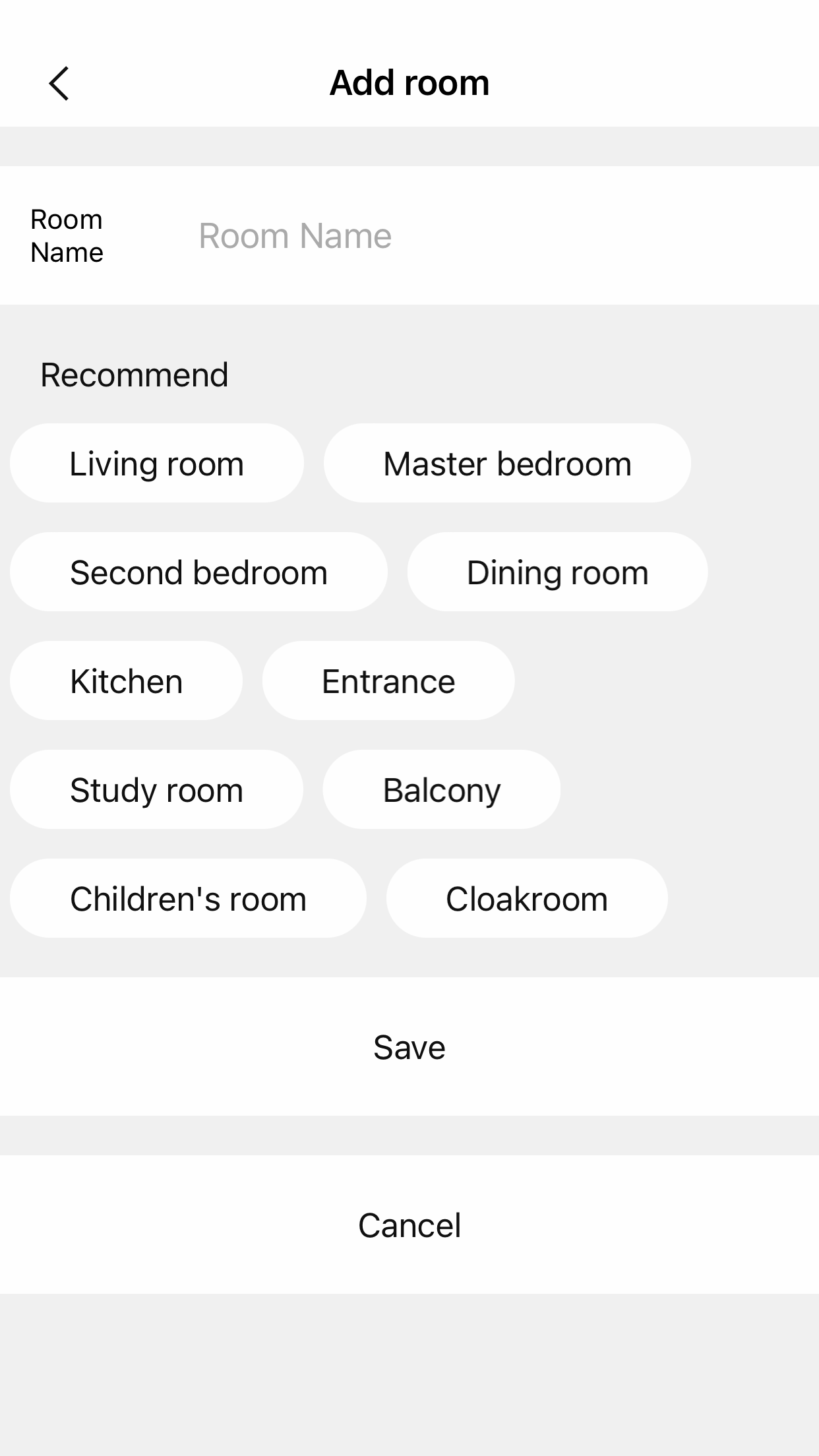
Click ... on the room navigation bar on the app device list page to jump to the room management page
Long press the room name to delete the current room;
Click room to add or remove equipment to the room;
Click add room to create a new room. You can click the preset name to quickly create the corresponding room.
3.3、control equipment
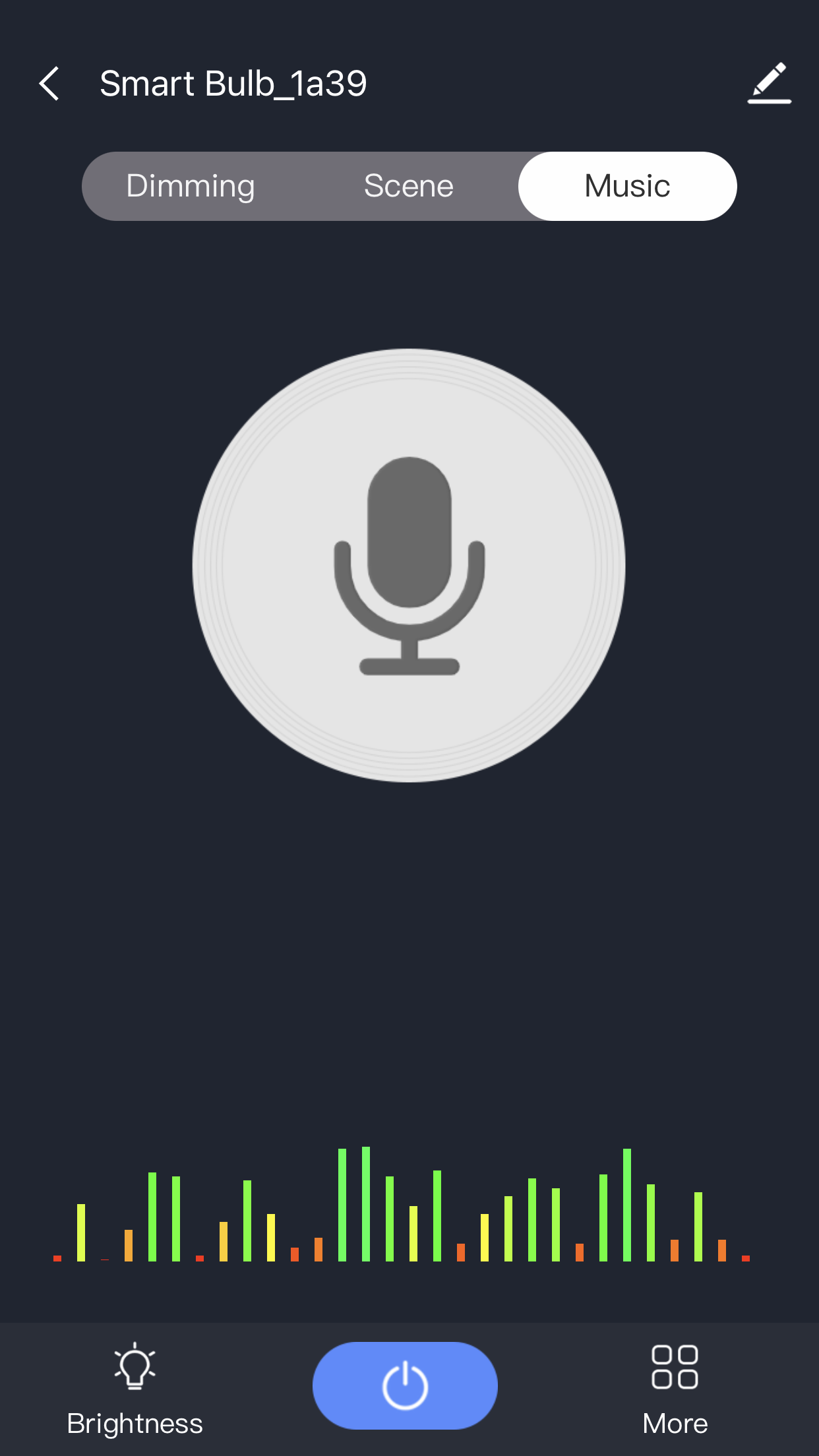
3.3.1、Equipment panel
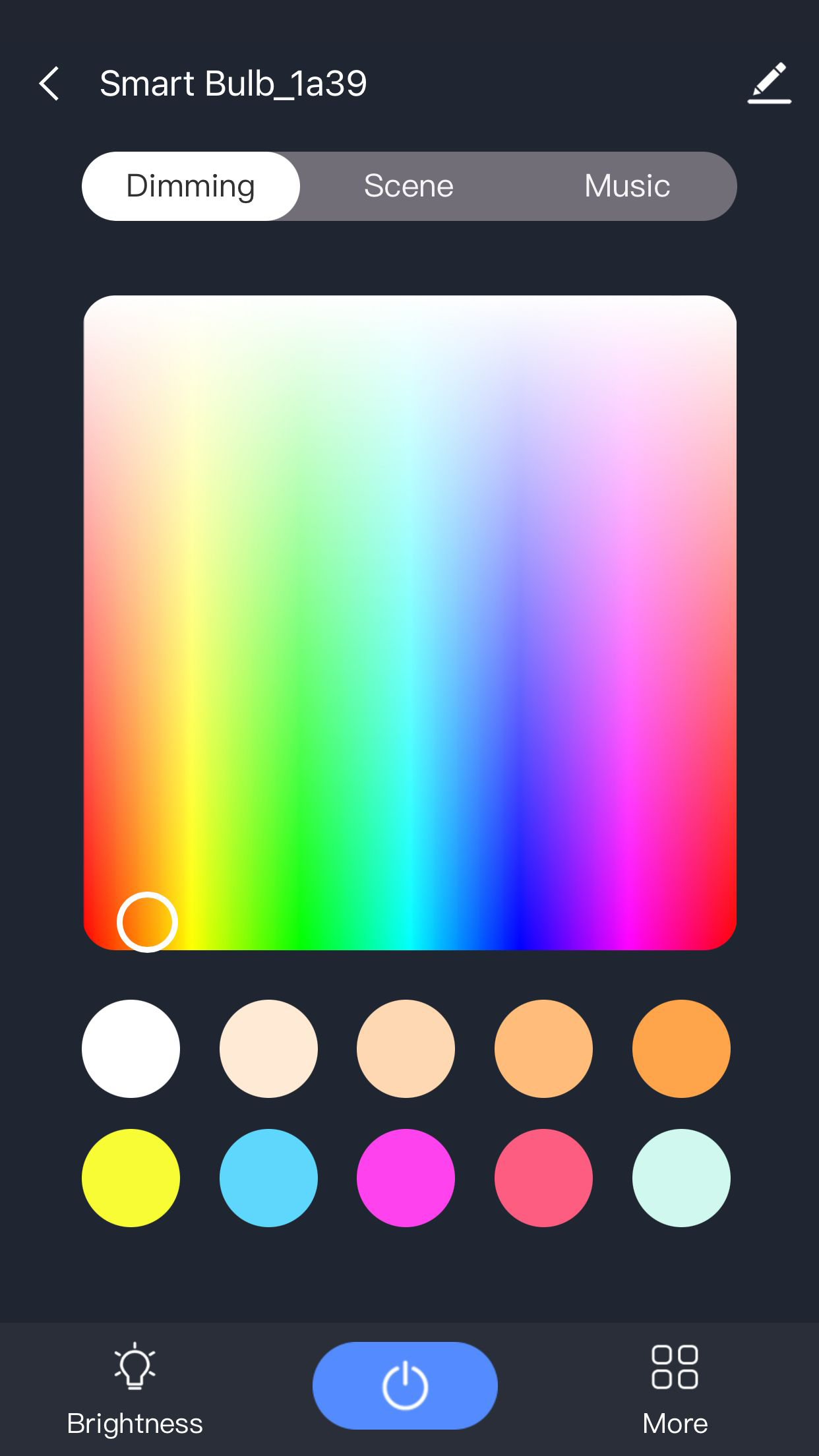
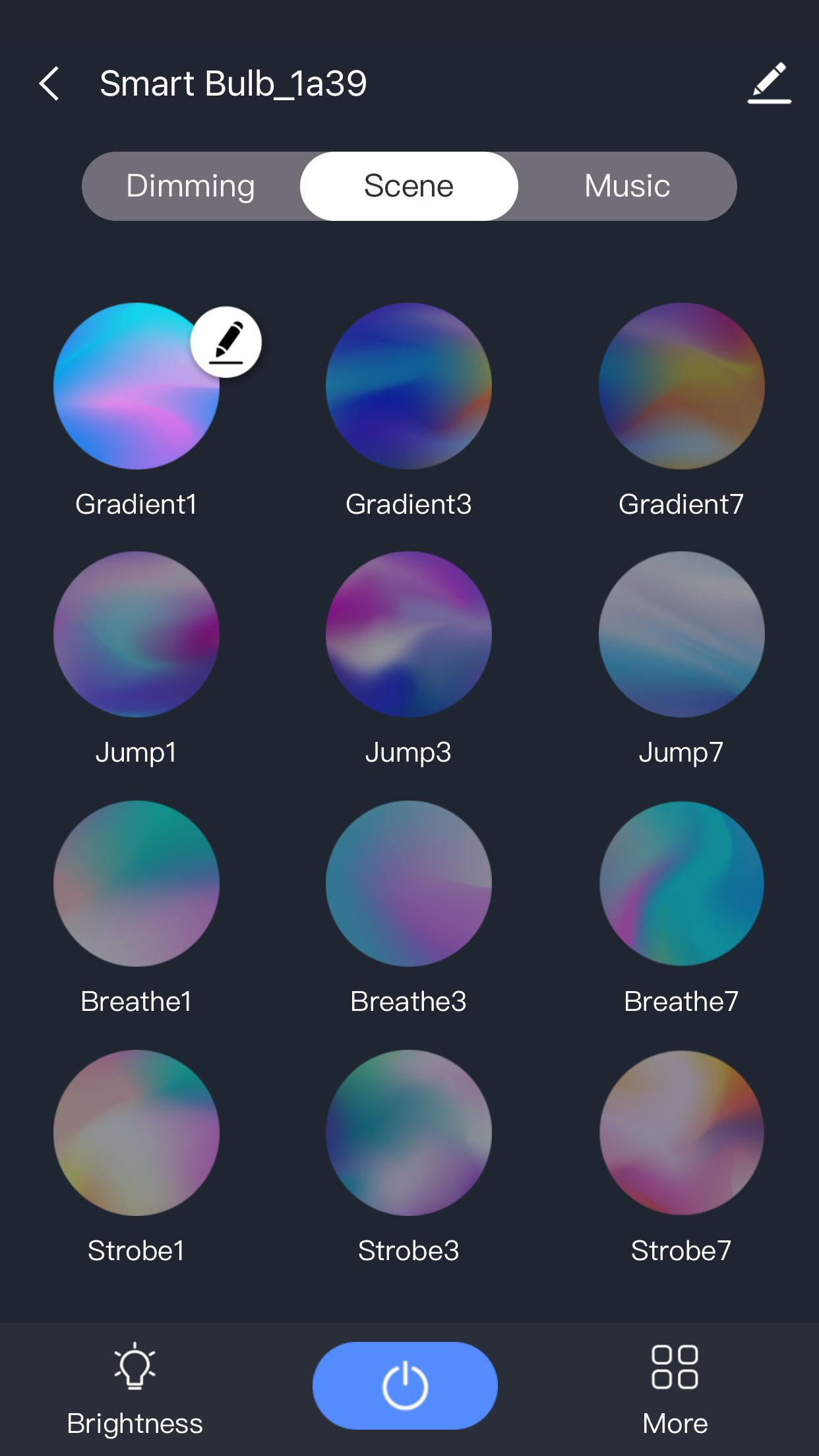
After the device is successfully distributed, the icon of the device will appear in the device list. Click the icon to enter the control panel corresponding to the device. (the control panel of different equipment will be different)
When the device is offline, the device icon becomes gray, and the device cannot be operated at this time.
3.3.2、device details
Click the upper right corner of the device control panel to view the device details page
Topic selection: select different panels to control the device
Equipment information: modify or view equipment name, equipment ID, signal strength, firmware version, etc;
Sharing device: you can share this device with others in the form of QR code. Just scan it with the comfortable life app;
Common problems and feedback: you can view the common problems of this kind of products and provide help for you. You can also feedback and seek help through the feedback button;
Remove device: remove the device from the device list. At the same time, the related scene configuration and the data saved by the device itself will also be cleared.
四、四、 Other functions
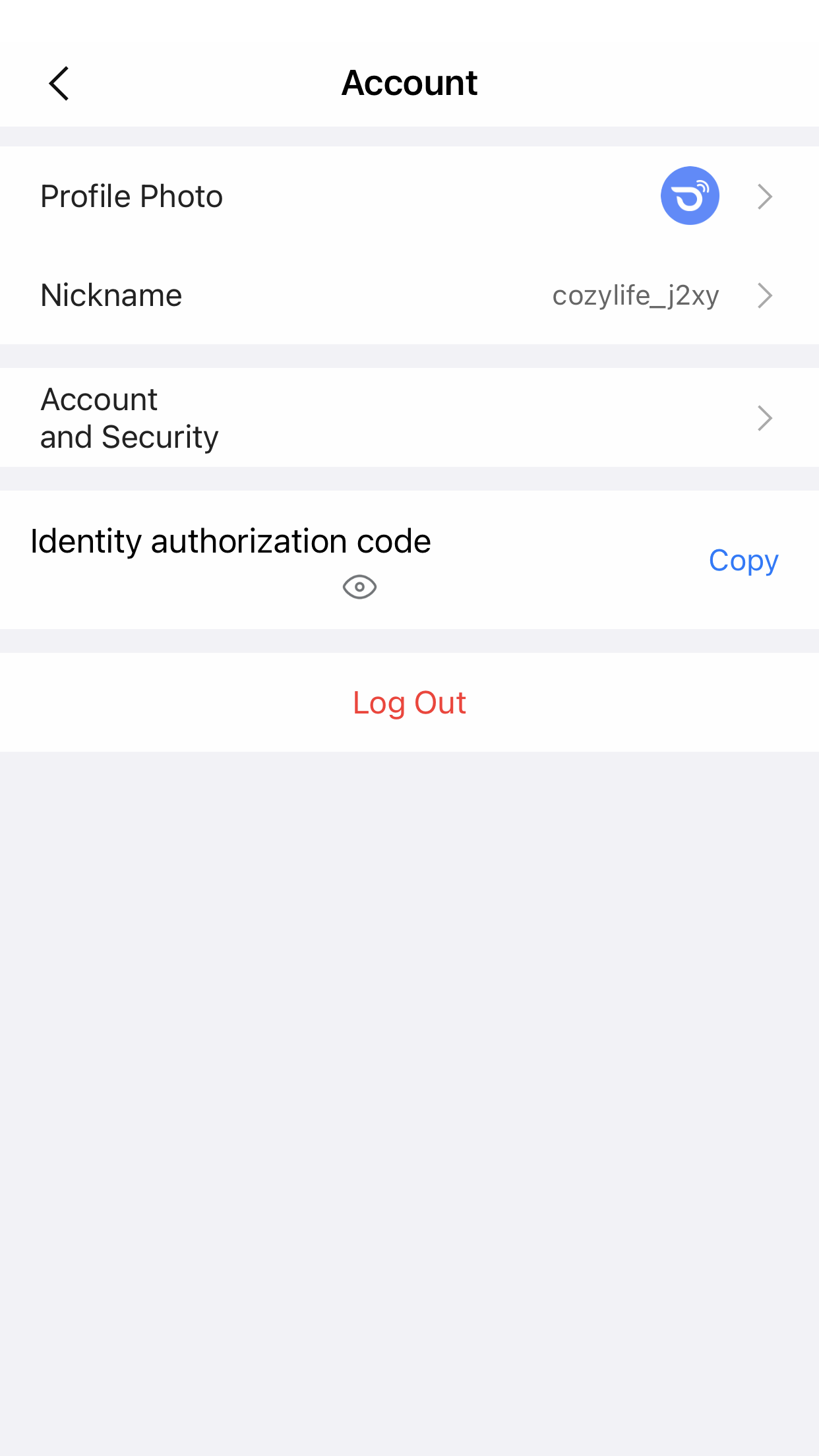
4.1、Personal Center
Click I - Avatar to enter the personal center. The personal center page is used to display personal account information. You can modify avatar, nickname, login password, etc.
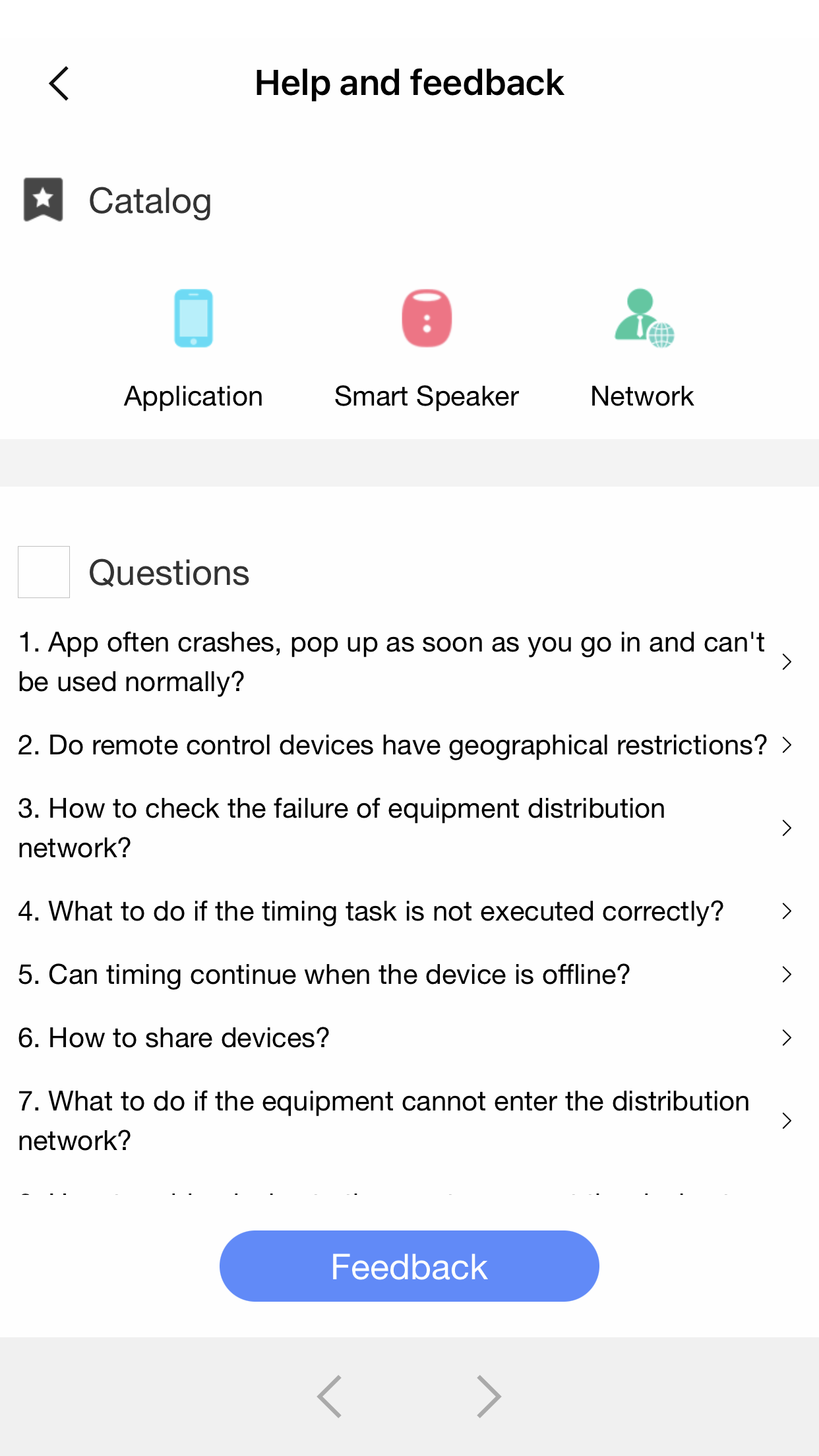
4.2、Help and feedback
This page is used to display common problems encountered by users during use
You can also feed back the problems you encounter in use to us on this page;
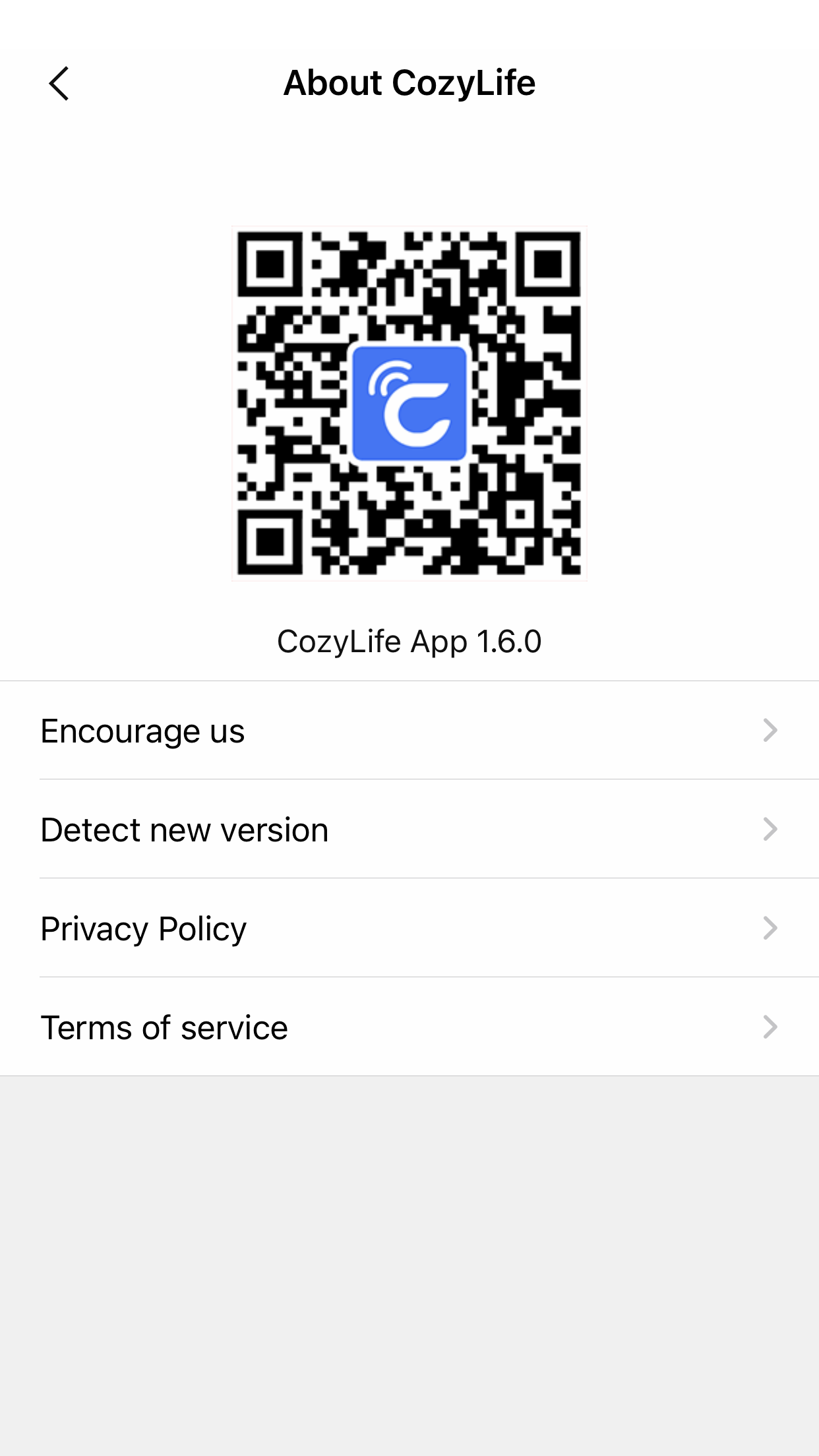
4.3、About cozylife
This page is used to show some information about the app.